A FEW SIMPLE STEPS
Get started
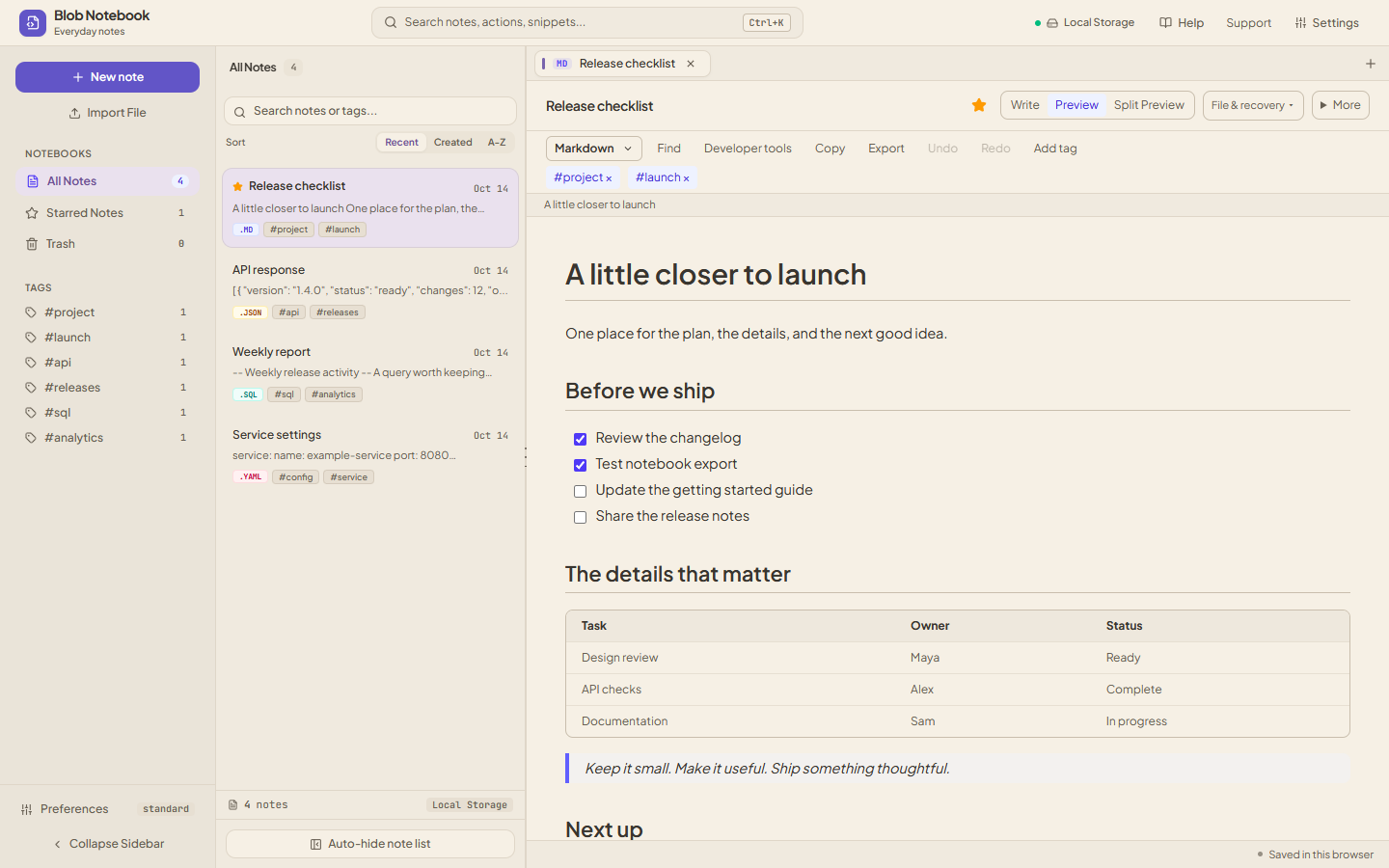
- Open the notebook, create a note, and choose Markdown or .md.
- Write your headings, lists, and fenced code blocks, or paste the example below.
- Choose Preview to read the rendered Markdown, then return to Edit to change the source.
- Download the note when you want to use the .md file elsewhere.
Open editor takes you to the draft on this page. Paste or open a source file, or choose Try this example. Save to notebook keeps a named copy with your notes. Your workspace style stays unchanged.
From a quick note to a useful README
Use headings to organize a long note, task lists for work in progress, and tables when a few rows are easier to scan than a paragraph. The preview supports GitHub-style Markdown features, including tables and checklists.
Fenced code blocks can name a language, such as js, python, sql, or yaml. Keep the explanation around the code in the same document, rather than maintaining a separate scratch file.
Keep the Markdown source
The .md source stays editable. Download the note to keep a Markdown file you can move into a repository or another editor, and use a notebook backup when you want to move all your notes.
For very large documents, the preview is limited to the first 200,000 characters. Editing and source export retain the full document.
A few questions
Does the Markdown editor work offline?
Yes, after the app finishes its initial online caching and shows “Ready to use offline”. Your notes remain in the same browser.
Can I publish a note as a shared web page?
The notebook stores notes locally. It does not publish notes or create public sharing links. Download the source or a backup to move your work.